1. Export a TXT marker file from Adobe Prelude Live Logger
In the Adobe Prelude Live Logger app go to export and save the TXT file.
2. Use the "Conversor de Marcadores" to convert the TXT marker file into a CSV file
Open the free Conversor de Marcadores, select "Adobe Prelude Live Logger > Marker (.txt)" and set "convert" to "CSV for Google Sheets". Generate and download the file. Se tiveres problemas a converter o ficheiro, podes contactar o suporte gratuito.
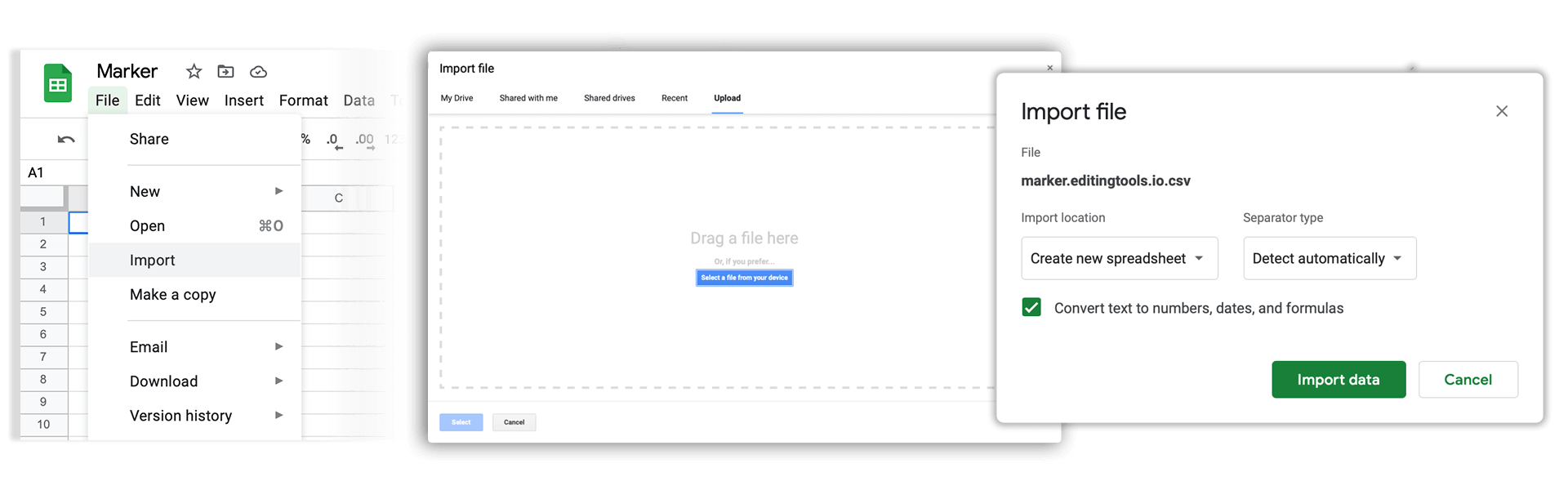
3. Import the CSV file into Google Sheets
Open Google Sheets and go to "File -> Import". Upload the generated CSV file and press "Import Data" to generate the Sheet with all markers.
🚀 Concluído
Por agora, é tudo! Se este tutorial te foi útil, partilha-o para nos apoiares. Se tiveres sugestões sobre como poderíamos melhorar o workflow, diz-nos!