1. Export an Avid DS (Subcap) subtitle file from Avid Media Composer
Move the position indicator to any instance of the SubCap effect in the sequence, and ensure that the track containing the effect is selected. Open the Effect Editor, for example, by clicking the Effect Mode button. In the Caption Files parameter category, click Export Caption Data. Navigate to the location where you want to store the exported file. In the File name text box, enter the name for the caption file. From the Files of type menu (Windows) or the Enable menu (Macintosh), select the caption file format Avid DS (for the Avid Subcap file). In Tracks to Export, select the caption tracks from which you want to export data.
2. Use the "Ferramenta & Conversor de Legendas" to convert the Avid DS (Subcap) subtitle file into a CSV file
Open the free Ferramenta & Conversor de Legendas, select "Avid DS (Subcap)" and set "convert" to "CSV for Google Sheets". Generate and download the file. Se tiveres problemas a converter o ficheiro, podes contactar o suporte gratuito.
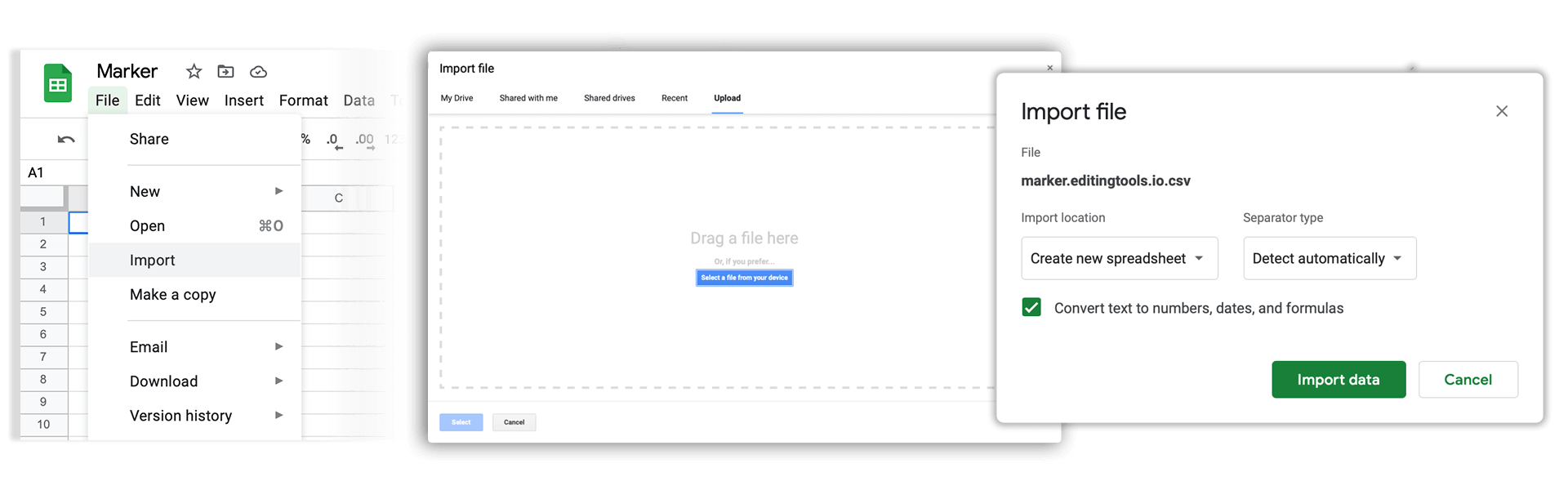
3. Import the CSV file into Google Sheets
Open Google Sheets and go to "File -> Import". Upload the generated CSV file and press "Import Data" to generate the Sheet with all markers.
🚀 Concluído
Por agora, é tudo! Se este tutorial te foi útil, partilha-o para nos apoiares. Se tiveres sugestões sobre como poderíamos melhorar o workflow, diz-nos!