1. Use the "Conversor de Marcadores" to convert an OpenTimeline IO marker file into a CSV file
Open the free Conversor de Marcadores, select "OpenTimeline IO" and set "convert" to "CSV for Google Sheets". Generate and download the file. Se tiveres problemas a converter o ficheiro, podes contactar o suporte gratuito.
2. Import the CSV file into Google Sheets
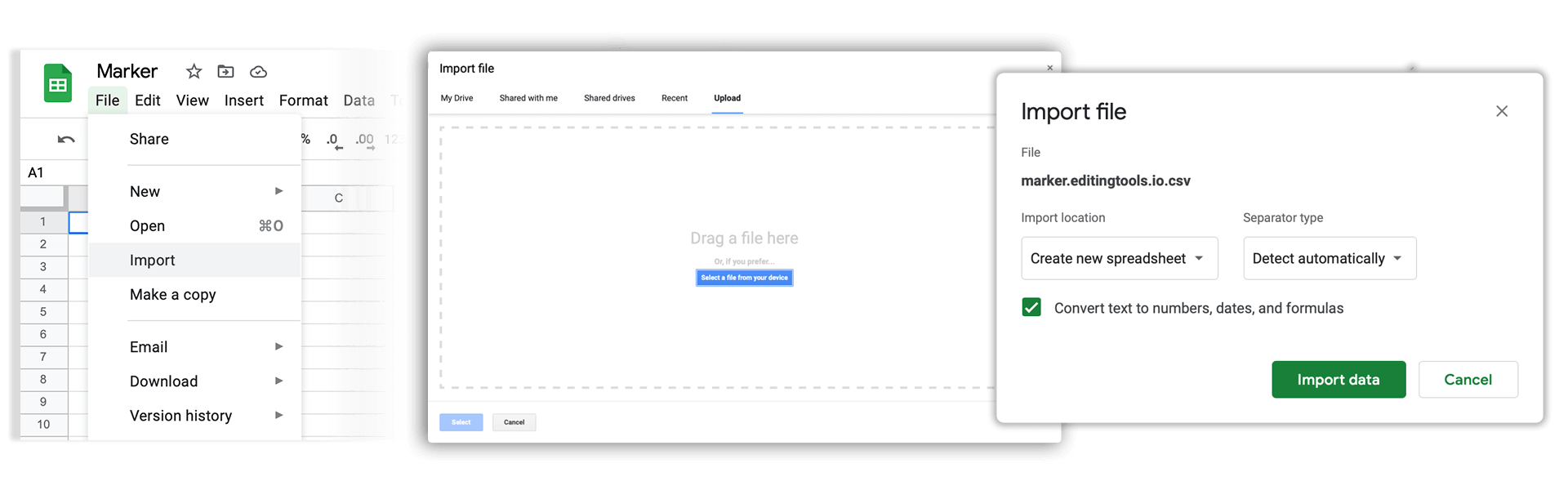
Open Google Sheets and go to "File -> Import". Upload the generated CSV file and press "Import Data" to generate the Sheet with all markers.
🚀 Concluído
Por agora, é tudo! Se este tutorial te foi útil, partilha-o para nos apoiares. Se tiveres sugestões sobre como poderíamos melhorar o workflow, diz-nos!